Shopify how-to
How to add a request a quote button on Shopify
By Jahangir Alam · June 18, 2026 · Updated August 22, 2026 · 6 min read
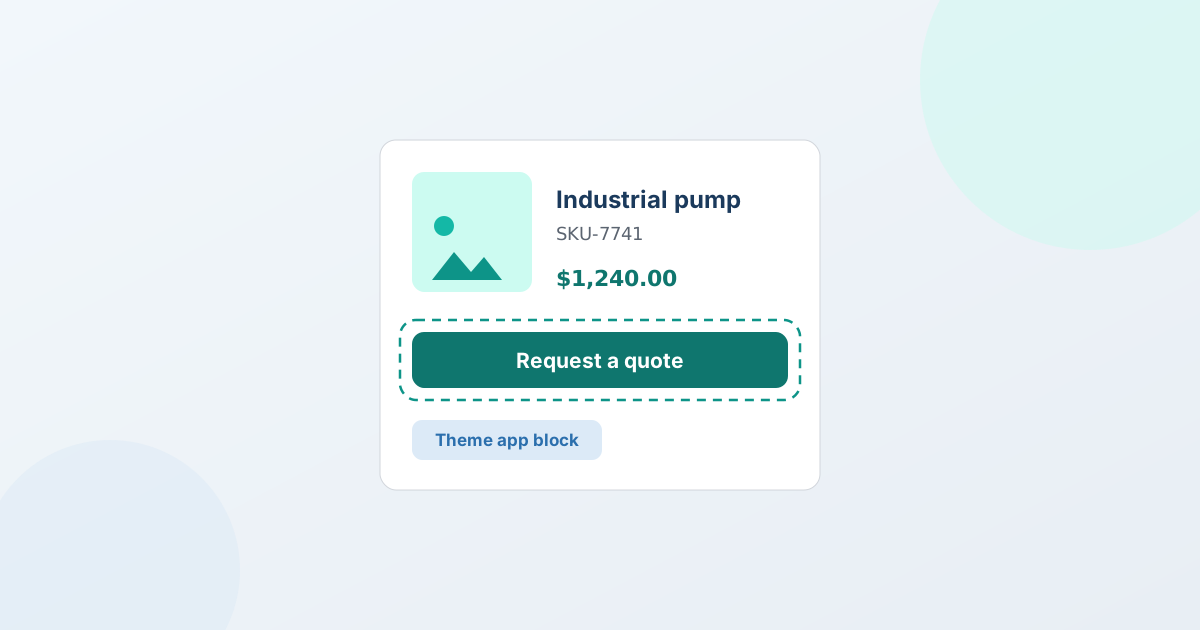
To add a "Request a quote" button on Shopify, install a quote app, add its app block to your theme in the Shopify theme editor, configure the quote form, and choose which products and buyers see the button. With QuotWay you do this without editing theme code - the button is a theme app block you place visually, and it works on the free Lite plan. The rest of this guide walks through each step and what happens after a buyer sends a request.
A request-a-quote button replaces (or sits beside) "Add to cart" so B2B and wholesale buyers ask for pricing instead of checking out at your public rate. It's the entry point for everything downstream: collecting the request, sending a proposal, negotiating, and turning the accepted quote into a Shopify order.
Why merchants add a request a quote button
Plenty of Shopify stores sell to other businesses, and standard checkout doesn't fit how those deals work. A request-a-quote button is the common fix for a few recurring situations:
- Wholesale and trade buyers. They expect volume-based pricing that depends on quantity, account, or region - not the single retail price on the page. A quote button lets them tell you what they need so you can price it.
- Custom or made-to-order products. When price depends on specs, materials, dimensions, or artwork, there's no fixed number to put on "Add to cart." Buyers request a quote and attach details instead.
- Negotiated B2B deals. Larger orders involve back-and-forth on price, terms, and timing. Capturing that as a structured quote beats losing it in an email thread.
- Gated or trade-only pricing. Some merchants don't want public retail prices shown to wholesale buyers at all. They hide the price and show a quote button in its place.
In each case the goal is the same: capture the lead with the details you need to price it, and keep the conversation organized instead of scattered across inboxes.
Your options for adding a quote button
There are three common ways to get a request-a-quote button onto a Shopify store. Each has trade-offs.
1. Native Shopify features. Shopify's standard product pages are built around "Add to cart" and checkout. Shopify B2B (Companies, catalogs, and payment terms) handles a lot of wholesale selling, but it doesn't give buyers a self-service "Request a quote" flow with a configurable form and multi-round price negotiation. There's no built-in setting that swaps the buy button for a quote button on your storefront.
2. Custom theme code. A developer can add a button and a form by editing your theme's Liquid and JavaScript, then wiring the submission to email or a form service. This is fully customizable, but you own the maintenance: it can break on theme updates, it usually lacks an inbox, proposals, or any record of the deal, and changes mean another round with the developer.
3. A quote app. A purpose-built app adds the button through a theme app block - no code - and brings the parts a raw form doesn't: an inbox for incoming requests, targeting rules for which buyers see quoting, proposals and counter-offers, and conversion to a Shopify draft order. This is the route this guide follows, using QuotWay.
QuotWay is a B2B quote and negotiation app for Shopify by EFOLI. The "Request a quote" button is available on every plan, including the free Lite plan, so you can set it up before deciding on a paid tier.
How to add a request a quote button with QuotWay
Here's the full setup, start to finish. The button itself needs no theme-code editing - you place it through Shopify's theme editor like any other section or block.
Step 1 - Install QuotWay
Add QuotWay from the Shopify App Store and approve the requested permissions. Installation creates your QuotWay admin inside Shopify, where you'll manage requests, proposals, and settings. A guided onboarding starts you off; you can follow it or jump straight to the theme editor. The free Lite plan lets you add the button and collect requests right away, with a 14-day trial on paid plans when you're ready for more.
Step 2 - Add the app block in the theme editor
Open your Shopify theme editor (Online Store → Themes → Customize) and turn on the QuotWay app embed for your theme. Then add the "Request a quote" app block where you want buyers to see it:
- On product pages - place the block beside or in place of the "Add to cart" button.
- On the cart - add it to the cart page so buyers can turn a full basket into one quote request.
- Across your whole catalog - switch quoting on storewide if you run a pure-B2B or wholesale store.
The button uses your store's styling out of the box, so it matches your theme without custom CSS. Save the theme, and the button is live where you placed it. No Liquid, no JavaScript - Shopify renders the app block for you.
Step 3 - Configure the quote form
Decide what you need to know to price a deal, and build the form to match. QuotWay starts with built-in fields - quantity, company, contact, notes - on every plan. (Which fields to ask for goes through the choice in detail, with five worked field sets.) From there:
- Add custom fields for the details specific to your products (text, choices, numbers, and more): up to 5 on Starter and up, unlimited on Professional and up.
- Use conditional logic on Professional and up to show or hide fields based on a buyer's earlier answers, so the form stays short and only asks what's relevant.
- Accept buyer attachments on Starter and up so buyers can send specs, drawings, or artwork. Files are checked by type and rejected if they contain active or malicious content.
Keep the form focused. The faster a buyer can tell you what they need, the more requests you'll actually receive.
Step 4 - Target the right buyers
You probably don't want every visitor to see a quote button. Targeting rules decide which products and which buyers get the quote path, so retail shoppers check out as normal while wholesale and B2B buyers request a quote. Build rules from data already in your store:
- By product, collection, product tag, product type, or vendor.
- By customer, customer tag, or logged-in vs. guest status.
- Customer-segment targeting on Starter and up, and B2B company and location targeting on Professional and up.
The same rules can also hide prices for the buyers you target. You can hide prices on your storefront and show a "Request a quote" button (or your own message) in their place on Starter and up - useful if you don't want wholesale buyers seeing your public retail rate. One honest note: on Starter this is a visual hide that controls what your buyers see; on Professional and up, search-engine-safe hiding also keeps the price out of the page source and structured data for signed-out visitors.
Step 5 - Go live
Once the button is placed, the form is set, and your targeting matches how you sell, you're live. Submit a test request from your storefront - guests can request a quote on every plan and confirm with a quick email step, so no buyer account is required - and confirm it lands in your QuotWay inbox. That's the whole setup: install, place the block, build the form, target, and test.
What happens after a buyer requests a quote
Adding the button is the start. The reason to use an app rather than a bare form is what comes next - the path from request to order.
- Inbox. Every request lands in one organized QuotWay inbox inside Shopify, with the buyer's answers and any attachments attached - not buried in email.
- Proposal. You build a proposal with real pricing: line items, quantities, discounts, shipping, and tax. It's a structured document, not a one-line reply.
- Negotiate. The buyer can counter, and you can counter back. Each round is versioned and recorded, so there's a clear history of who changed what and when, rather than a tangle of forwarded emails. (See how this works on the quote negotiation page.)
- Convert to a draft order. When the buyer accepts, the agreed quote becomes a real Shopify draft order at the negotiated prices - so it flows through your normal Shopify fulfillment and payment. Buyers can even accept part of a quote and keep negotiating the rest. (Convert quotes to orders covers this.)
That loop - capture, propose, negotiate, convert - is what turns a quote button from a contact form into a way to close B2B deals on Shopify.
FAQ
How do I add a request a quote button on Shopify?
Install a quote app such as QuotWay, then add its "Request a quote" app block to your product pages, cart, or whole catalog in the Shopify theme editor. With QuotWay you don't edit theme code - you place the block visually, and the button is available on every plan, including the free Lite plan.
Do I need to edit my theme code to add a quote button?
No. QuotWay adds the button as a theme app block, which you place through Shopify's theme editor like any other section. There's no Liquid or JavaScript to write, and the block uses your store's styling so it matches your theme automatically.
Can guests request a quote without an account?
Yes. Guest quoting is available on every QuotWay plan. A guest submits the form and confirms it with a quick email-verification step - no account required - and the quote attaches to their Shopify customer account later if they create one.
Sources
The Shopify facts in this guide are verified against Shopify's official documentation:
Add a request a quote button to your store
Install QuotWay, drop a "Request a quote" button on your products, target the right buyers, and start capturing real B2B leads - with negotiation and one-click draft orders when you're ready to close. The button is free on the Lite plan, with a 14-day trial on paid plans.
Learn more: Quote requests & forms · Pricing
Related articles
See how QuotWay handles this on your store.