Automation rules
Read time: 4 minutes. Who it's for: Merchants on Professional or Enterprise who want to auto-handle incoming quote requests - auto-send, auto-accept, auto-decline, auto-assign, and silence follow-ups - without watching the inbox.
⚠️ Automation requires the Professional plan or higher.
Put quotes on autopilot (Professional and above): rules that act on quote requests the moment they arrive, and follow up with buyers who go quiet. Find them under Automation in the app navigation.
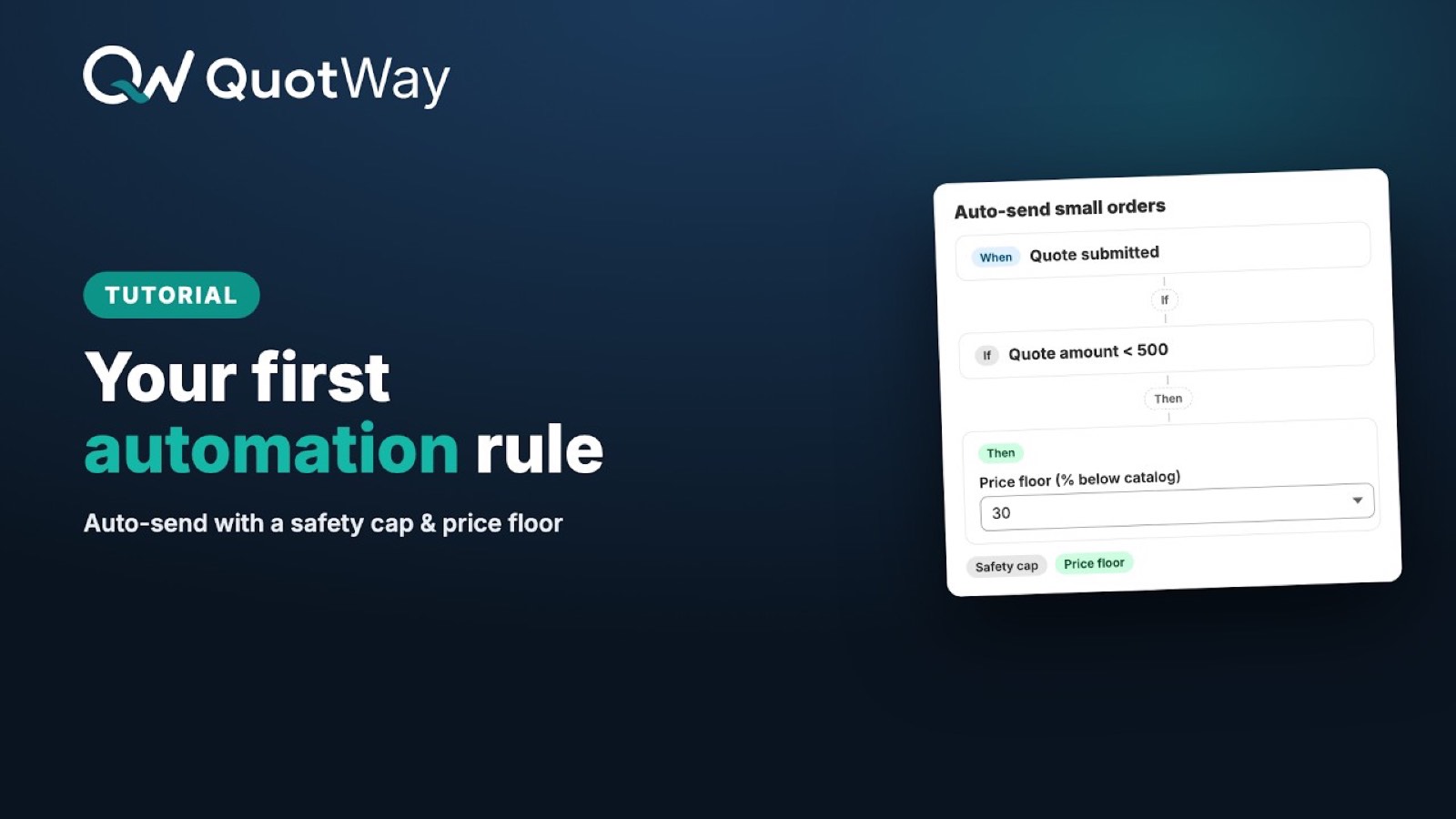
What a rule looks like
Every rule is When → If → Then:
- When - the trigger. Either a quote is submitted (storefront or customer-account requests; quotes you create manually are never auto-actioned) or a proposal goes unanswered for N days.
- If - optional conditions, built with the same condition builder as approval policies: quote value, requested discount %, deepest line discount % (the single deepest line vs catalog - catches a deep-discount line hiding in an otherwise full-price quote), products, customer tags, currency, company location, combined with and/or/not. No conditions = the rule applies to everything the trigger sees.
- Then - one action:
| Action | What happens |
|---|---|
| Send the proposal automatically | Creates and sends the proposal at the buyer's requested price (or strictly catalog price). Two guardrails: the safety cap - totals above it always wait for a human - and the price floor (a max % below catalog, checked per line; the rule's own floor, or your shop-wide default from Settings → General). A below-floor line makes the rule skip by default, or pick "Counter at the floor price" to re-price offending lines to exactly the floor and send. |
| Accept the quote automatically | The instant-close action: creates the proposal at the buyer's requested price and finalizes a full acceptance on their behalf, then runs your usual draft-order/invoice settings. Safety conditions keep humans in control - set a safety cap (totals above it wait for a human) and a price floor (any line more than your floor % below catalog waits for a human; auto-accept never counters), any unpriced or custom line is skipped for review, and any matching merchant or buyer approval policy always takes precedence. |
| Decline with a message | Declines the request and sends the buyer your templated message ({quoteReference} and {shopName} fill in automatically). It also lands in the quote's message thread. |
| Assign to a team member | Routes the quote to a staff member the moment it arrives. Skips quotes someone already claimed. |
| Email the buyer a follow-up | After N days of silence on a sent proposal, nudges the buyer with a reminder email. Sent at most once per quote. |
Things to know
- Approvals always win. An auto-sent proposal goes through your approval policies exactly like a manual send - if a policy matches, the quote waits for approval and the buyer sees nothing until the chain approves.
- One shot per rule per quote. A rule never fires twice on the same quote, even across retries.
- Everything is logged. Each firing (including skips, with the reason) appears in Recent activity on the Automation page and on the quote's timeline.
- Pause everything at once with the master switch at the top of the Automation page, or pause a single rule with its row switch.
- Follow-ups don't pile on. A buyer who just received an expiry reminder won't get a follow-up the same day (and vice versa).
- Customer-tag conditions only match logged-in buyers - guests have no tags.
Common setups
Start from a template on the Automation page:
- Auto-send small orders - value < 500 → send at the requested price with a 500 safety cap. Big quotes still get human eyes.
- Decline deep discount requests - requested discount > 40% → polite automatic no.
- Route big quotes to a manager - value > 5,000 → assigned on arrival.
- Nudge after 3 days of silence - proposal unanswered → friendly follow-up email.
Can a rule require a deposit?
On Shopify Plus stores (Professional plan and up), an auto-send rule can stamp a deposit on the outgoing proposal - set "Deposit - % due at checkout" in the rule's action, or start from the "Require a deposit on big orders" template (quotes of 10,000 or more auto-send with a 50% deposit). Approval policies can guard the other direction: the "Manager check on low or waived deposits" template holds any proposal asking less than 25% - including none - for a manager. On non-Plus stores these options don't appear.
Troubleshooting
- A rule didn't fire. Check Recent activity - skips show a reason (e.g.
over-cap,under-floorwhen a line is priced below your price floor,floor-unverifiablewhen a floor is set but a line has no catalog price to check against,unpriced-linesfor custom lines without prices,already-assigned,status-movedwhen a human got there first). - Nothing fires at all. Check the master switch, the rule's own switch, and that your plan is Professional or above.
Related articles
- Auto-accept quotes - the auto-accept action and its safety conditions in depth.
- Approval workflows - the human counterpart: multi-step sign-off before proposals go out.
- Plans, trial, and billing - automation is Professional+.
Still need a hand? The team is happy to help.