Getting started with QuotWay
Read time: 6 minutes. · Last updated: July 3, 2026
Who it's for: New merchants who just installed QuotWay (or are about to) and want a working quote loop on their store in about 10 minutes.
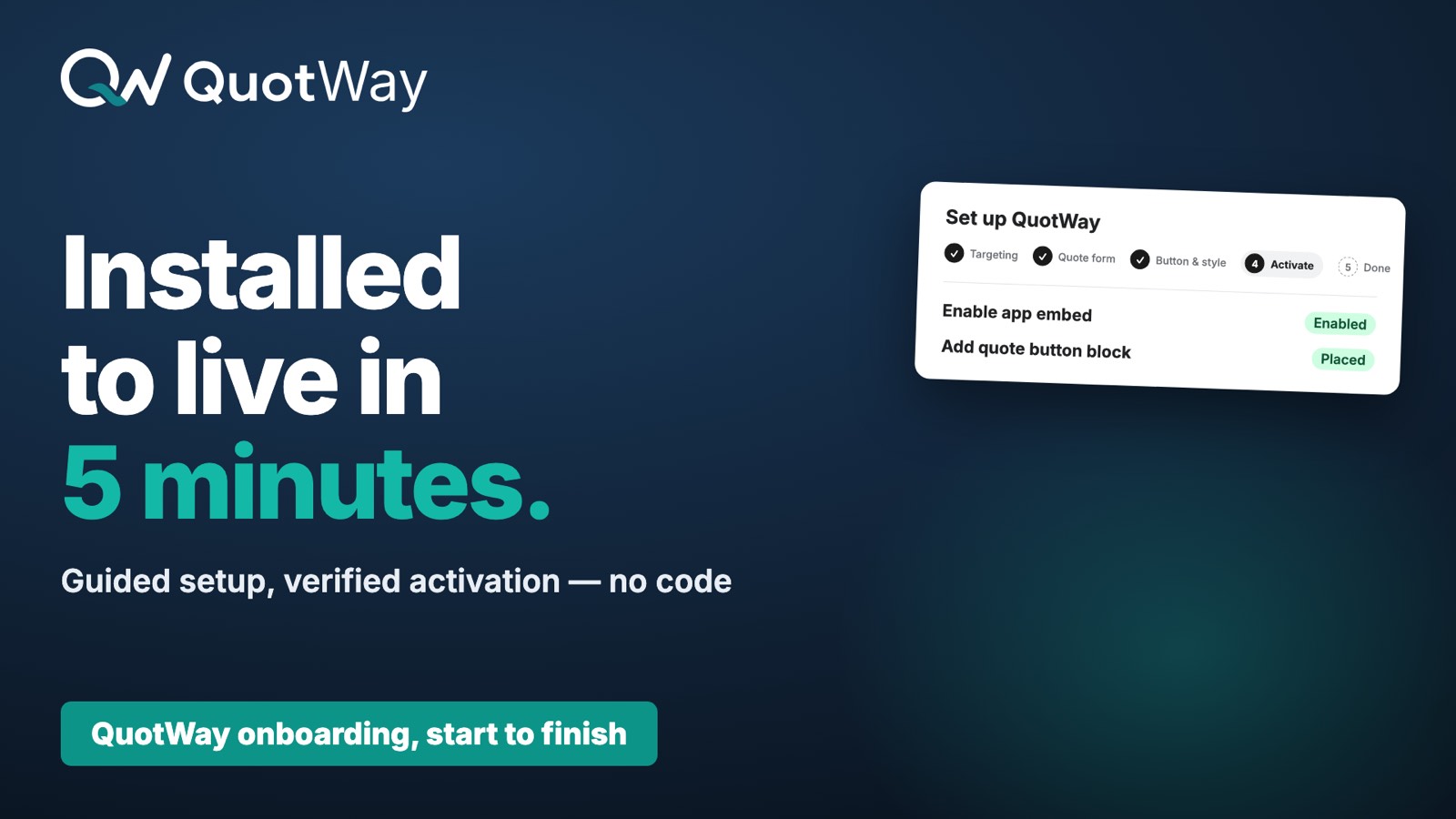
QuotWay is a B2B quote and negotiation app for Shopify. This guide takes you from install to a finished round-trip: a buyer requests a quote, you send a priced proposal, the buyer accepts, and you convert it to a Shopify draft order. By the end you'll have:
- ✓ Installed QuotWay from the Shopify App Store.
- ✓ Finished the onboarding wizard (targeting, quote form, buyer experience, storefront).
- ✓ Sent and received a test quote.
- ✓ Converted an accepted quote into a Shopify draft order.
Before you start
- A Shopify store on any plan. QuotWay detects B2B capability automatically and serves company-aware quotes when a buyer arrives with a company context - otherwise it serves wholesale/DTC quotes. A single store can serve both. B2B is not Shopify Plus-only.
- Admin or staff access to the store (the
Appspermission). Anyone who opens the embedded app is set up as an admin by default; you can downgrade staff later in Settings → Staff. - A test customer for the round-trip in step 3 - your own logged-in account in a private window, or a colleague with a Customer Account on your store.
Step 1 - Install QuotWay from the App Store
- Open the QuotWay listing on the Shopify App Store and select Add app.
- Approve the requested permissions in the Shopify install screen.
- After the install flow finishes, you land on the Set up QuotWay onboarding wizard inside your Shopify admin.
Expected result: QuotWay appears under Apps in your admin, and the onboarding wizard opens on its first step. Every paid plan includes a 14-day free trial with full features; the Lite plan is free forever (up to 10 quotes/month).
Step 2 - Choose who can request quotes
This is step 1 of the onboarding wizard. QuotWay needs to know which products and customers should see the quote button.
- Pick a product scope:
- All products - the quote button shows on every product page. Easiest to start.
- Specific collections - limit the button to a curated set of collections.
- Tagged products - show the button only on products carrying a tag (for example,
wholesale). QuotWay scans your catalog for common wholesale-style tags and pre-fills the choice if it finds one.
- Set the customer toggles:
- Let all customers request quotes (recommended on).
- Show on the cart page (recommended on).
- Select Save and continue.
Expected result: at least one enabled targeting rule exists. You can fine-tune product-side and customer-side rules any time in Targeting.
Step 3 - Customize your quote form
This is step 2 of the wizard. Every quote form always asks for the buyer's name, email, and the product and quantity they want. You can layer extra fields on top.
- Toggle on any built-in fields you want - company name, phone number, shipping address, purchase order number, a custom message, a requested delivery date, a requested price per line, or a file attachment. (File attachments upload up to your plan's attachment limit - see File attachments.)
- Watch the split-pane preview on the right; it updates in real time as you flip toggles so you see exactly what buyers will see.
- Select Save and continue.
✓ On B2B-capable stores, Company name and PO number auto-enable.
⚠️ Custom form fields beyond the built-ins are available on Starter (up to 5 fields) and Professional or Enterprise (unlimited). Conditional show/hide logic between fields requires Professional or Enterprise. See Custom fields and conditional logic.
Expected result: your form settings are saved and the preview reflects your chosen fields.
Step 4 - Pick the buyer experience
This is step 3 of the wizard. QuotWay needs a way to deliver proposals back to buyers, and it auto-detects the right path for your store.
- Customer-account quotes - buyers review and respond to quotes inside their existing Shopify Customer Account. This works on stores using the new customer accounts and is available on every plan.
- Hosted buyer portal - for stores on legacy customer accounts, QuotWay ships a magic-link buyer
portal at
portal.quotway.com/<your-shop>/<token>. It also serves as the guest path for buyers without an account.
In this step you can set the portal logo and brand color. The hosted portal picks up your store's locale automatically.
Expected result: your buyer-experience choice is saved. Routing depends only on whether your store uses new or legacy customer accounts - not on your plan.
Step 5 - Enable the storefront app block
This is step 4 of the wizard. Two quick actions in the Shopify theme editor make the quote button appear on your storefront.
- Enable the QuotWay app embed. This loads QuotWay's core script. It adds no visible UI on its own.
- Add the QuotWay quote button app block to your product template. The button appears next to Add to cart (or wherever you place it).
Both actions deep-link out to the theme editor from the wizard. When you return, QuotWay auto-detects that the embed and block are placed.
⚠️ The cart-page button is available on Starter and above. See App embed and activation if the button doesn't appear.
Expected result: the wizard shows the app embed and the quote button block as placed, and the button is visible on a matching product page on your storefront.
Step 6 - Turn on notifications and finish
The final wizard step confirms your notification settings and completes setup.
- Confirm the Sender name QuotWay uses on emails it sends to buyers (new-quote, proposal, bounce alerts, and expiry/reminder notices).
- Select Go to Dashboard.
Expected result: onboarding is complete and you land on the QuotWay dashboard. You're live.
Step 7 - Send and receive a test quote
Run the round-trip now, while everything is fresh. It takes about five minutes.
- Open your storefront as a buyer (use a private window, or a colleague's logged-in account).
- Go to a product page that matches your targeting rules and select Request a quote. The quote drawer opens.
- Fill in the form and submit.
- Switch to your admin → Apps → QuotWay. The new quote sits at the top of your quotes list.
- Open the quote, select Send proposal, set a price and a short message, and send.
- The buyer receives an email with a link to review the proposal in the buyer portal or their customer account. As the buyer, open it and accept the proposal.
- Back in your admin, confirm the quote status reads
FULLY_ACCEPTED.
Expected result: an accepted quote (FULLY_ACCEPTED) is visible in your quotes list, and the
matching emails show a SENT status - QuotWay handed each one to the mail provider. (Emails can
still land in spam; ask the buyer to check their spam folder if a link doesn't arrive.)
Step 8 - Convert the quote to a draft order
- Open the accepted quote in your admin.
- Select Convert to draft order.
- QuotWay creates a Shopify draft order at the agreed price. Send it for payment or invoice from Shopify as usual.
Expected result: a Shopify draft order exists at the agreed price, and the quote reflects its converted state. That's a complete quote loop - request to order.
💡 You don't have to wait for a buyer. On Starter and above you can create quotes yourself: on the Quotes page select Create quote, pick an existing Shopify customer or enter any email for a new lead, add catalog products or custom lines, and you land straight in the proposal editor to price and send.
Set your price floor early
While you're in Settings → General, set your shop-wide price floor - a maximum % below catalog that guards every quote. With a floor in place, the proposal editor flags any below-floor line and asks for an explicit Send below floor anyway confirmation before a below-floor price goes out (on every plan), and automation rules never price below it (Professional and above, where each rule can carry its own floor that overrides the default). Leave it empty for no floor.
See Set a floor price and discounts for how the floor works in the proposal editor and in automation.
Troubleshooting
- The quote button doesn't appear on my storefront. Confirm both the app embed and the quote button app block are enabled in the theme editor, and that the product matches your targeting rules. See App embed and activation.
- My test email didn't arrive. QuotWay shows the email as SENT once it hands it to the mail provider; it doesn't confirm inbox delivery. Check the buyer's spam folder. If the address bounced, the quote shows a BOUNCED warning - re-send to a corrected address.
- A file upload was rejected. QuotWay validates each file's type and rejects files with malicious or active content. Check the file type and that you're within your plan's attachment limit.
For anything else, see Common issues or email
support@quotway.com.
Related articles
- Quote button placement - fine-tune where the button appears in your theme.
- Configure the quote form - built-in fields, custom fields, and validation.
- Plans, trial, and billing - what each plan includes, the 14-day trial, and upgrades.
In this section
Still need a hand? The team is happy to help.