Approval workflows
Read time: 7 minutes. Who it's for: Merchants who need internal sign-off before a proposal goes to a buyer, or whose buyers' procurement teams need to sign off before they can accept.
⚠️ Approval workflows require the Professional plan or higher. Lite and Starter merchants see the policy editor but can't create policies. Professional includes linear multi-step chains; parallel + conditional steps, timeout escalation, and delegation are Enterprise features. See Plans, trial, and billing.
QuotWay supports two sides of approval:
- Merchant-side - sales rep proposes; sales manager approves before the proposal sends to the buyer.
- Buyer-side - buyer submits; purchasing manager approves; then finance approves; then the quote is officially accepted (B2B-capable stores).
Both sides share the same policy structure: steps + actors per step + optional parallel groups + optional conditional rules.
Anatomy of a policy
A policy has:
- Domain -
MERCHANTorBUYER. - Trigger condition - when does this policy apply? Examples:
- Quote total > $50,000
- Quote contains products in collection X
- Buyer's customer tag contains
enterprise - (No condition) - applies to every quote in the domain.
- Steps - ordered chain of approval steps. Each step has:
- Actors - who can approve (one or more staff members, or one or more roles).
- Mode -
ALL(every actor must approve) orANY(one approval clears the step). - Optional conditional rule - skip this step if X.
A policy is active when it has at least one step + the Enabled toggle is on.
Worked example A - Single-step merchant approval
Scenario: every quote over $10K needs a sales manager to approve before the proposal goes out.
Policy:
- Domain: MERCHANT
- Trigger:
quote.totalEstimate > 10000 - Steps:
- Sales manager review - actor:
staff:sales-manager-1- mode: ANY.
- Sales manager review - actor:
That's it. When a sales rep clicks Send proposal on a $12K quote, the proposal status flips to AWAITING_MERCHANT_APPROVAL. The sales manager gets an email + an in-app notification. They review → approve → the proposal sends.
If they reject, the rep gets a notification with the rejection reason and can edit + re-submit.
Worked example B - Buyer-side, multi-step, parallel
Scenario: your enterprise buyer's procurement team needs 3 sign-offs:
- Purchasing manager
- EITHER finance OR legal (parallel - whichever signs first)
- CFO
Policy:
- Domain: BUYER
- Trigger:
quote.total > 100000 - Steps:
- Purchasing manager review - actor: assigned per quote (defaults to buyer's company purchasing role) - mode: ANY.
- Finance OR Legal review -
parallelGroup: 1- actors: finance + legal - mode: ANY (first one to approve clears). - CFO final - actor: assigned per quote - mode: ANY.
When the buyer hits Accept on the proposal, the quote status flips to AWAITING_BUYER_APPROVAL. QuotWay surfaces the chain in the buyer portal: "Step 1 of 3 - Purchasing manager review".
Worked example C - Conditional skip
Scenario: standard quotes go through one approval; quotes for a specific high-priority customer skip approval entirely.
Policy:
- Domain: MERCHANT
- Trigger: (no condition - applies to everything)
- Steps:
- Sales manager review - actor: sales manager - mode: ANY - conditional: skip if
customer.tags contains "auto-approve".
- Sales manager review - actor: sales manager - mode: ANY - conditional: skip if
The auto-approve flag bypasses step 1 entirely for tagged customers. Useful for managing a small VIP roster without maintaining two parallel policies.
Editing policies
- Admin → Approvals → New policy (or open an existing one). New policies offer templates for the common cases - start from one and tweak, or build from scratch.
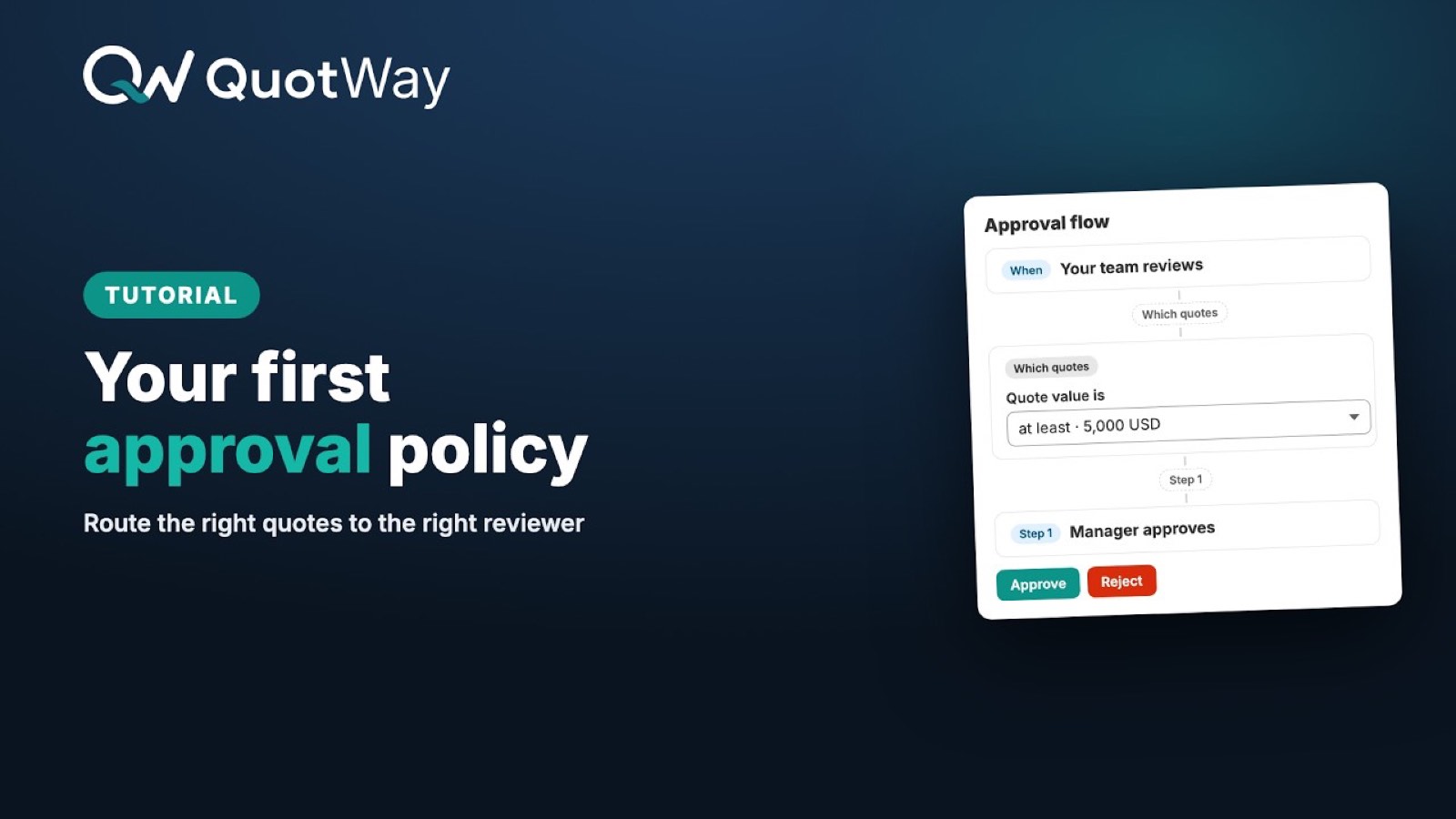
- The editor is a top-to-bottom flow: When (who reviews + the trigger) → Which quotes (scope + conditions) → your steps → Then (what happens once the chain approves).
- Add steps with the + buttons on the flow. For each step:
- Pick the approvers (specific staff, a role, or buyer contacts for buyer-side policies).
- To run a step in parallel with the one above it, tick "Run at the same time as the previous step".
- Conditional skips live under "Add a condition to this step"; time limits, escalation targets, delegation and rationale live under the step's Advanced settings.
- Save.
- Enable the policy when you're ready.
You can have multiple policies. They evaluate in priority order; the first matching policy wins.
Approval state in the inbox
The quote inbox shows the current state of each pending approval:
AWAITING_MERCHANT_APPROVAL- merchant-side; sales manager owes a decision.AWAITING_BUYER_APPROVAL- buyer-side; buyer's chain in progress.
Open the quote detail → Approvals tab to see the full chain: each step's status, who owes the next action, and the elapsed time in the current step.
Escalation
If an approval step is ACTIVE for more than 7 days, the approval-escalation-check cron fires:
- The merchant gets an in-app banner: "Approval stuck - review or reassign".
- A
MerchantEvent('approval_chain_stuck_7d')is logged for analytics.
Manual reassignment is available via the support tools in Settings → Support → Reassign approval actor.
What approval looks like to the buyer
Buyers on B2B-capable stores see the approval chain in the Customer Account UI extension OR the hosted portal - depending on which path your store uses. Each step shows:
- Status badge (PENDING / ACTIVE / APPROVED / REJECTED).
- The actor's role label (PII like names are redacted from the buyer view unless the buyer is themselves a chain member).
- The action button if the current viewer is the active actor.
Approval delegation
If an actor is going on vacation, they can delegate their pending approvals to another staff member via Settings → Approvals → Delegation. Delegations are scoped to a date range. After the range expires, approvals route back to the original actor.
Common gotchas
- Policy editor blocked with "Upgrade required". You're on Lite or Starter. Approval workflows need Professional+.
- Step fires but the actor doesn't get an email. Check that the actor's StaffMember record has an email address. Shopify sometimes hides staff emails from the API - see Troubleshooting.
- Conditional skip never triggers. The conditional uses the same rule format as Targeting (see Targeting rules). Verify the condition matches the quote's actual data.
- Parallel group with both
mode: ALLactors. That works but reads as "everyone in the group must approve, in any order". Often you wantmode: ANYinstead.
Related articles
- Partial acceptance and split conversion - what happens after an approved proposal gets accepted.
- Buyer portal vs customer account - where buyer-side approvals surface.
Still need a hand? The team is happy to help.