Hide prices and show a "Request a quote" button
Read time: 6 minutes. Who it's for: Merchants who want to hide retail prices on their Shopify storefront for wholesale and B2B buyers, and show a "Request a quote" button in their place.
⚠️ On its own, hide-price is a storefront visual hide - it controls what buyers see, but it does not remove the price from your page source, structured data, or Open Graph tags. To keep the price out of search engines too, add search-engine-safe hiding (a Professional+ feature - the Price Gate block plus a short theme edit, with a built-in leak check). See Hide your price from search engines.
Hiding prices on Shopify means replacing the price on your storefront with a "Request a quote" button (or your own message), so wholesale and B2B buyers ask for pricing instead of seeing your public rate. With QuotWay you turn it on per plan, choose whether to remove the price or swap it for text, and target exactly which products and buyers it applies to. This article walks through setting it up - and tells you plainly what hide-price does and doesn't do for search engines.
What you'll get
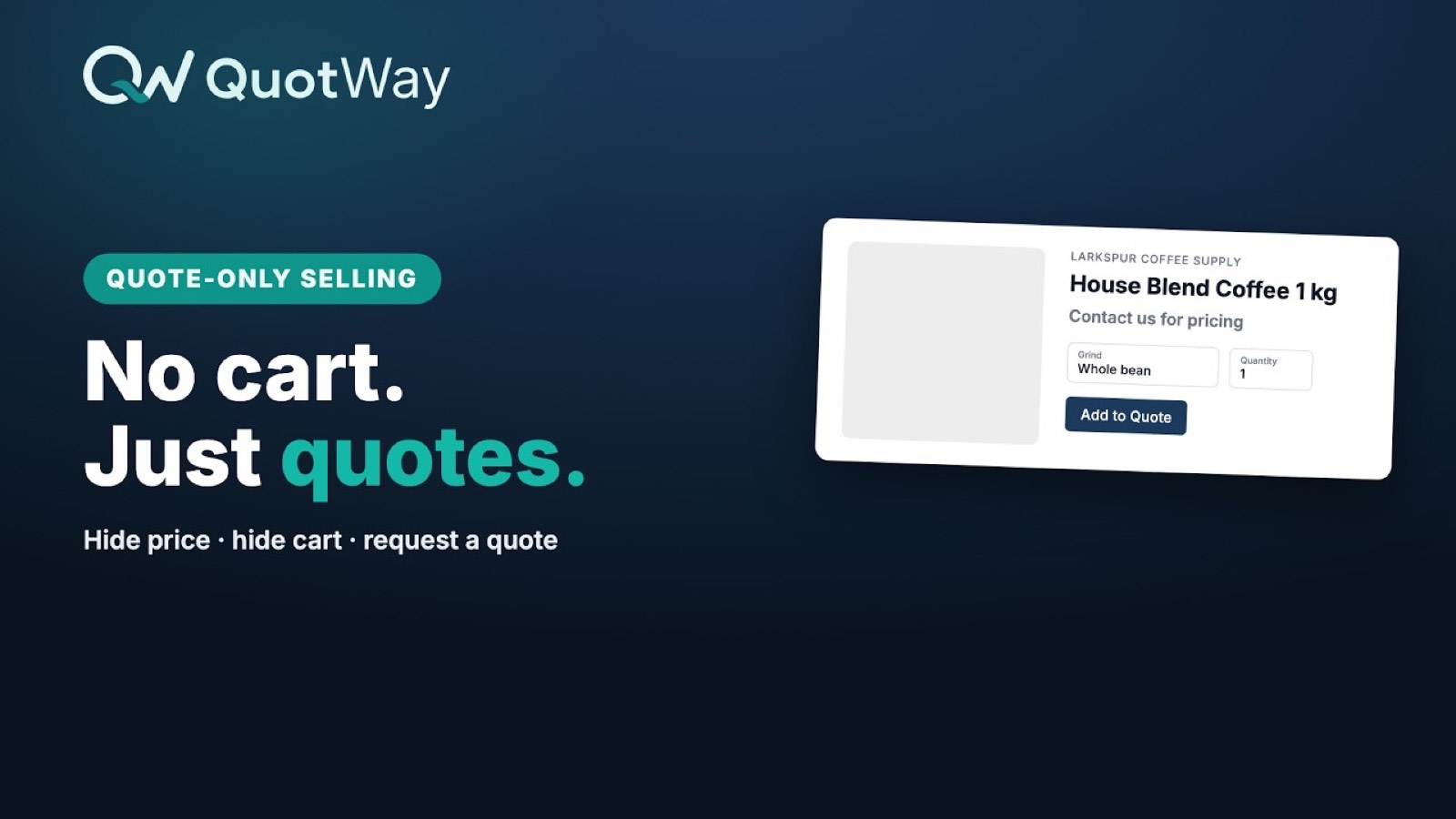
When hide-price is on, the buyers you target see a "Request a quote" button where the price used to be, instead of your retail rate. The same targeting that decides who sees the quote button decides whose prices hide, so retail shoppers check out as normal while wholesale buyers get the quote path. You can also hide Shopify's native "Add to cart" and "Buy it now" buttons so requesting a quote is the only way forward.
⚠️ Hiding prices requires the Starter, Professional, or Enterprise plan. On the free Lite plan you can add the "Request a quote" button and hide the native "Add to cart" / "Buy it now" buttons, but the price itself stays visible.
Before you start
- QuotWay installed, with the app embed turned on. See App embed and activation.
- A Starter plan or above (the 14-day trial on any paid plan unlocks hide-price during the trial).
- At least one targeting rule, if you want prices to hide only for specific products or buyers rather than storewide. See Targeting rules.
How to turn on hide-price
These steps emit HowTo schema.
- Open the hide-price settings. In your QuotWay admin, go to Quote button → Pricing.
- Pick a hide mode. Choose how the price is replaced:
- Hide only - remove the price element so nothing shows in its place.
- Hide and show text - replace the price with your own message, for example "Request a quote for trade pricing" or "Contact us for pricing". The message is per-locale, so international buyers see it in their language.
- Set the replacement text (if you chose "Hide and show text"). Enter the message buyers see where the price was. Keep it short and action-led - it sits next to the "Request a quote" button.
- Choose where it applies. Set Apply on to the storefront surfaces you want covered:
- Product pages - hide the price on the product page itself.
- Collection pages - hide the price on product cards in collections.
- All pages - hide the price across product pages, collections, search, and home.
- Choose the targeting mode. Set Apply to to decide which products are affected:
- Quotable products only (recommended) - hide the price only on products that match your quote-button targeting, so price-hiding follows the same products and buyers as the button.
- All products on the selected pages - hide every price on the surfaces you chose, regardless of quote-button targeting.
- (Optional) Hide the native buttons. To make quoting the only path, also turn on hiding Shopify's native "Add to cart" / "Buy it now" buttons. This is available on every plan, including Lite.
- Save. The save bar confirms your changes. The price now hides on your storefront for the matching products and buyers.
Open your storefront as a guest (or as a targeted customer) to confirm the price is replaced and the "Request a quote" button shows.
Does this hide prices from Google?
On its own, the visual hide does not - but QuotWay's search-engine-safe hiding (Professional+) does, and it's shipped. Here's the distinction:
The visual hide alone controls what your buyers see in their browser; it does not remove the price from the page itself. After a visual hide, the real number is still in:
- The page source - the raw HTML your theme sends before any script runs. Search engines read this first.
- Structured data - the Product JSON-LD block (
<script type="application/ld+json">) that carriesoffers.price. - Open Graph and meta tags -
og:price:amount,product:price:amount, anditemprop="price".
The visual hide uses CSS and JavaScript, which run after the page is served. Search engines index the HTML they're served before that happens, so a visually hidden price can still appear in search results and structured data. Don't treat the visual hide alone as a way to keep trade pricing off Google - that's what search-engine-safe hiding is for.
Search-engine-safe hiding (Professional+) - shipped. Because Google crawls your store logged out, the reliable approach is to not server-render the price for guests in the first place. On the Professional plan and above, QuotWay gives you:
- the QuotWay Price Gate block - a theme block that shows "Sign in to see pricing" (your wording) and no price to signed-out visitors and crawlers;
- a guided, one-time theme edit that wraps the price,
og:pricemeta, and Product JSON-LD in{% if customer %}, so guests are served price-free HTML; - a search-engine leak check that fetches your product page as a signed-out visitor - exactly what Google sees - and flags any price still exposed.
When the price was never in the HTML a guest receives, there's nothing to index. Full step-by-step for any theme: Hide your price from search engines.
One honest limit. Shopify always exposes prices at /products.json and in its storefront analytics - no theme or app can remove those; only Shopify B2B catalogs or unpublishing the product hide them. They aren't what Google shows in a search snippet, so the steps above cover search results. And don't use noindex to hide a price - it removes the whole product page from search.
Gotchas
- Themes vary - a price isn't hiding. QuotWay matches the price elements used by Dawn, Horizon, and most OS 2.0 themes out of the box. If your theme uses an unusual price markup and a price won't hide, add your theme's price custom CSS selector in Quote button → Pricing so QuotWay can target it.
- Prices flash before hiding. On slower connections the price can appear briefly before the script hides it. This is expected for a visual hide - the price is in the page source (see the section above), so it renders first and is hidden a moment later.
- Collection / card prices stay in the source. Hiding prices on collection cards is a visual hide only; themes render card prices server-side, so those prices remain in the page source even when hidden from view.
- A targeted buyer still sees the price. Check that the buyer matches a targeting rule and the Apply to mode covers them. With Quotable products only, a product the quote button doesn't target won't hide its price.
- You changed the message but buyers see the old text. Replacement text is cached briefly on the storefront. Reload after a short wait, and confirm you saved per the correct locale.
Related articles
- Quote button placement - where the "Request a quote" button shows on your storefront.
- Targeting rules - decide which products and buyers see hidden prices and the quote button.
- Plans, trial, and billing - which plan unlocks hide-price and what each tier includes.
Still need a hand? The team is happy to help.