Personnalisation des PDF et documents
Temps de lecture : 4 minutes. Pour qui : les marchands qui règlent l'apparence de leurs documents de devis - logo, couleurs, textes d'en-tête et de pied de page, conditions.
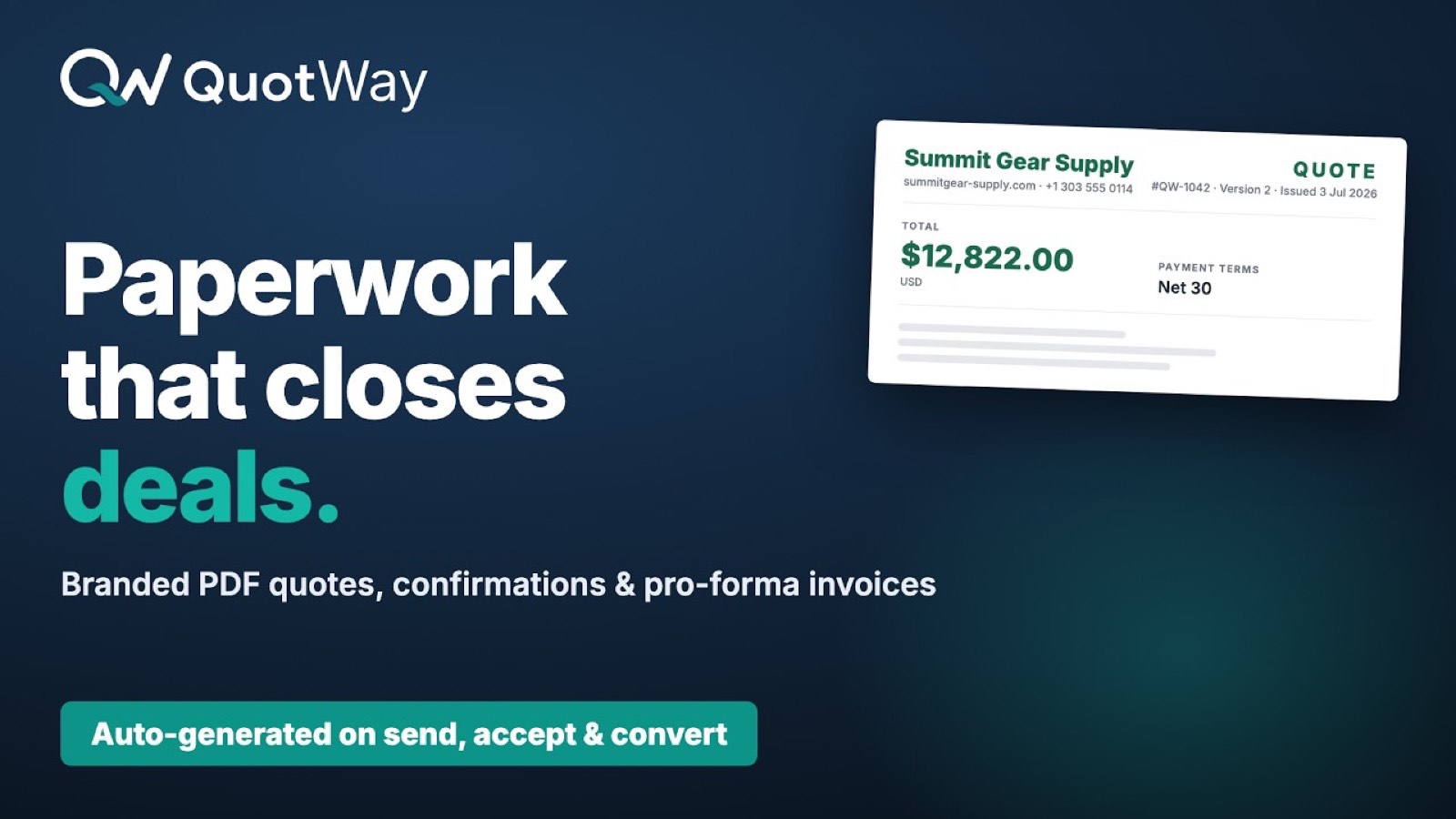
QuotWay génère trois types de PDF par devis :
| Type | Quand il est généré | Forfait requis |
|---|---|---|
| Proposition | Quand le marchand envoie une proposition à l'acheteur | Tous les forfaits |
| Confirmation | Quand l'acheteur accepte la proposition (en tout ou partie) | Professional et + |
| Pro forma | Quand l'acheteur accepte et a besoin d'une facture avant la conversion | Professional et + |
Les trois utilisent les mêmes réglages de personnalisation.
⚠️ Les PDF de confirmation et pro forma nécessitent le forfait Professional ou supérieur. Le PDF de proposition est disponible sur tous les forfaits.
Ce qui est personnalisable
Ouvrez Interface d'administration → Applications → QuotWay → Réglages → Personnalisation des PDF. Vous y trouverez :
| Champ | Valeur par défaut | Remarques |
|---|---|---|
| URL du logo | (aucune) | Collez une URL du CDN Shopify depuis Interface Shopify → Fichiers. |
| Couleur principale | #1B3A5C (Navy 900) |
Utilisée pour les en-têtes de page, la ligne de total, les accents. |
| Couleur secondaire | #374151 (Slate) |
Utilisée pour les bordures de tableau et la mise en valeur du texte. |
| Couleur d'accent | #0D9488 (Teal 600) |
Utilisée pour les pastilles de statut et les encadrés. |
| Texte d'en-tête du PDF | (vide) | Texte libre au-dessus du tableau des lignes. |
| Texte de pied de page | (vide) | Texte libre sous les totaux. Souvent l'adresse et le numéro de TVA. |
| Texte des conditions | (vide) | Un long bloc de conditions générales, sur la dernière page. |
| Afficher les images produit | Activé | Affiche ou masque la vignette à côté de chaque ligne. |
| Afficher le tampon d'acceptation | Activé | Ajoute un tampon signé par l'acheteur sur les PDF de confirmation. |
| Afficher le bloc de signature | Désactivé | Ajoute un bloc à imprimer et signer (signature autorisée, nom, date) à la proposition. |
Chacune des trois couleurs dispose d'un sélecteur : choisissez une teinte dans le nuancier ou saisissez une valeur, et QuotWay l'enregistre. Pas besoin de taper un code hexadécimal à la main.
Signatures, numéros de bon de commande et acceptation
Trois choses que les services achats demandent souvent, et l'endroit où chacune se trouve.
Le bloc de signature
Activez Afficher le bloc de signature pour ajouter à la proposition une zone à imprimer et signer : signature autorisée, nom et date. Elle existe pour les processus d'achat qui exigent un PDF signé au dossier, et elle est imprimée plutôt qu'interactive : l'acheteur imprime, signe et renvoie par le canal prévu par son processus.
Comment l'acceptation est réellement consignée
Indépendamment du bloc imprimé, QuotWay enregistre nativement l'acceptation quand l'acheteur accepte dans le portail ou dans son compte client. Cet enregistrement porte un horodatage, une empreinte d'acceptation et l'adresse e-mail de la partie qui accepte, et il est apposé sur le PDF de confirmation (voir Afficher le tampon d'acceptation). Pour la plupart des acheteurs, c'est la pièce que leur service financier classe : elle indique qui a accepté, quoi, et quand, sans que personne n'ait à imprimer quoi que ce soit.
Faire figurer un numéro de bon de commande sur la proposition
Les acheteurs dont le processus repose sur les numéros de bon de commande veulent en général voir ce numéro sur le document lui-même. Les champs personnalisés font cela : ajoutez à votre formulaire de devis un champ texte personnalisé intitulé Numéro de bon de commande, et la réponse de l'acheteur s'affiche dans un bloc Détails de votre demande sur le PDF de proposition - et voyage jusqu'à la commande obtenue sous forme d'attribut visible par l'acheteur, donc présent aussi sur la fiche de commande.
Le champ personnalisé est ainsi le bon endroit pour tout ce que l'acheteur fournit et qui doit figurer sur les documents : numéro de bon de commande, référence de projet, centre de coûts, consignes de livraison. Voir Champs personnalisés et logique conditionnelle.
Comment téléverser votre logo
QuotWay lit le logo depuis une URL du CDN Shopify. La marche à suivre :
- Interface Shopify → Paramètres → Fichiers.
- Cliquez sur Téléverser des fichiers. Choisissez votre logo au format PNG ou SVG (1 Mo maximum).
- Après le téléversement, cliquez sur le fichier et copiez son URL CDN - elle ressemble à
https://cdn.shopify.com/s/files/.... - QuotWay → Réglages → Personnalisation des PDF. Collez l'URL dans le champ URL du logo. Cliquez sur Enregistrer.
Le logo s'affiche sur environ 120 px de large sur chaque page du PDF, en haut à gauche, au-dessus du texte d'en-tête.
Bonnes pratiques :
- Un PNG à fond transparent est le plus sûr. Le SVG fonctionne, mais les polices incluses dans un SVG s'affichent de façon inégale selon les lecteurs.
- Un rapport largeur/hauteur inférieur à 4:1 (plus large que haut). Les logos très hauts se retrouvent tassés.
- Pas de couleur de fond - la page du PDF est blanche ; si votre logo a un fond non blanc, il apparaîtra comme un rectangle coloré.
Quand les PDF sont générés automatiquement
Par défaut :
- PDF de proposition - généré automatiquement quand le marchand clique sur Envoyer la proposition. Joint à l'e-mail de notification de l'acheteur.
- PDF de confirmation - généré automatiquement à
FULLY_ACCEPTEDouPARTIALLY_ACCEPTED. Conservé sur le devis ; l'acheteur peut le télécharger depuis le portail. - PDF pro forma - généré à la demande. Le marchand clique sur Générer le pro forma dans le détail du devis.
Réglez la génération automatique dans Réglages → Personnalisation des PDF : un interrupteur y est prévu par type de document.
Où sont conservés les PDF
Chaque PDF est une pièce jointe ordinaire (voir Pièces jointes) :
- conservé chiffré au repos ;
- la durée de conservation suit votre forfait (Lite 30 jours, Starter 90, Professional 180, Enterprise 365). Voir Pièces jointes pour le tableau complet ;
- visibilité : visible par l'acheteur pour la proposition et la confirmation ; réservé au marchand pour le pro forma, jusqu'à ce qu'il choisisse de le partager ;
- régénéré à la demande si le marchand met la proposition à jour (l'ancien PDF est conservé ; la nouvelle version ne remplace que le pointeur le plus récent).
Prise en charge des langues
Les PDF utilisent la langue de l'acheteur au moment du devis. Des libellés comme « Quote #1234 » deviennent « Devis no 1234 » en français, et « Subtotal » devient « Sous-total ». Le texte libre du marchand (en-tête, pied de page, conditions) n'est pas traduit automatiquement : rédigez-le dans les langues dans lesquelles vous travaillez, et utilisez Shopify Translate & Adapt pour localiser les textes de la boutique.
Pièges courants
- Le logo apparaît comme une image cassée. L'URL n'est pas joignable depuis le service de rendu de QuotWay. Utilisez une URL du CDN Shopify (toujours joignable), et non un lien de partage Google Drive ou Dropbox (ceux-ci exigent une authentification).
- Les couleurs semblent délavées. Les PDF sont rendus en sRGB. Si vous avez collé une valeur en gamut étendu, elle sera ramenée au sRGB. Choisissez toujours dans une palette sRGB.
- « Pro forma non disponible sur votre forfait. » Passez à Professional ou au-delà. Les PDF de proposition sont sur tous les forfaits ; les PDF de confirmation et pro forma demandent Professional ou au-delà.
- D'anciens PDF affichent encore l'ancien habillage. Les PDF sont générés une fois, au moment de l'événement. Régénérez-les depuis la page de détail du devis si vous avez changé l'habillage en cours de route.
Articles liés
- Pièces jointes - détails de stockage et de conservation.
- Portail acheteur ou compte client - les PDF générés vus par l'acheteur.
- Forfaits, essai et facturation - quels types de documents comprend chaque forfait.
Besoin d'un coup de main ? L'équipe est là pour vous aider.